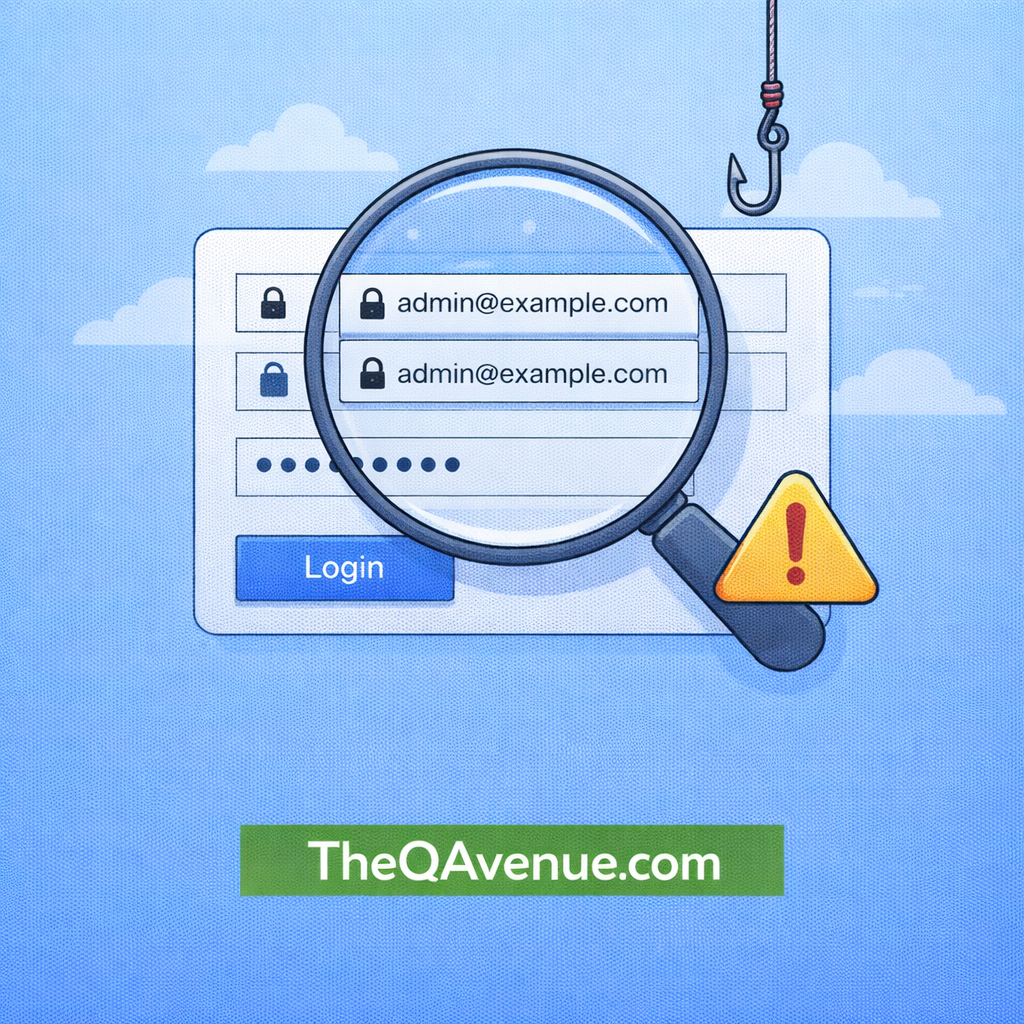
Autocomplete can improve user experience, but in some cases it may introduce security and usability risks.
Why it matters:
When autocomplete is enabled on sensitive fields, browsers may automatically fill saved credentials.
This can create issues such as:
- Exposing usernames on shared devices
- Incorrect data being auto-filled
- Security concerns in login forms.
How to test:
- Test login forms with browser autocomplete enabled.
- Check if sensitive fields like username or password are automatically filled.
- Try using the application on shared or public devices.
- Verify if the application properly controls or disables autocomplete where necessary.
Real Example:
On a shared mobile device, one user logs into the app and their username is saved by the browser. Later, another person uses the same device and the login form automatically displays the previous user’s username. This can expose personal information and create a potential privacy or security issue.
Pro Tip:
Always verify how forms behave with browser autocomplete enabled, especially in authentication or sensitive data fields.